Working Steps of Enstella NSF to PST Converter Software
How It Works - Lotus Notes to PST Tool
Get step by step Enstella Lotus Notes to Outlook Converter Software Working & See how its working & Export NSF to PST
Professional Lotus Notes to PST Software is an easy to use & simple NSF to PST conversion solution to friquently repair corrupt or damage NSF file and recover NSF Data. NSF to PST tool supports to repair corrupt OST Email in a simple steps as shown below:
Launch Enstella NSF to PST Converter Software (Go to Start -> Programs ->Enstella NSF to PST Converter-> Enstella NSF to PST Converter).
Animated Lotus Notes Converter Software Video
Startup Screen of Enstella NSF to PST Converte
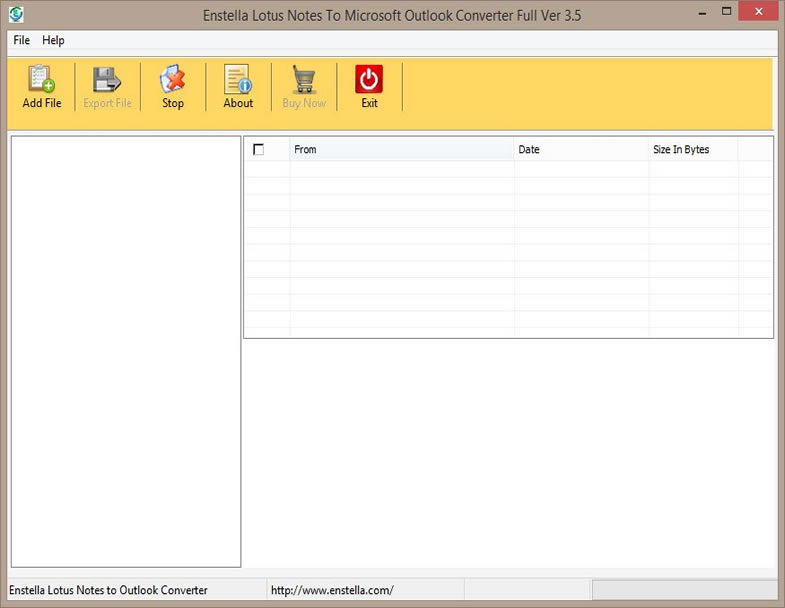
Click on Add File button
After clicking on this button, following window will appears on your screen.
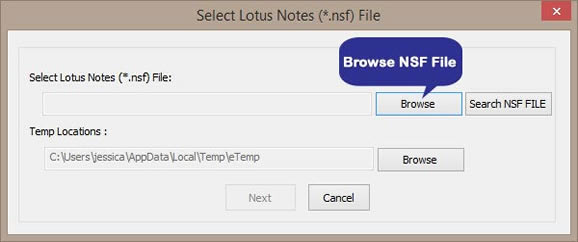
If user have no idea that where is their NSF file located so our Click on search option to that helps to user for searching NSF file in hard disk
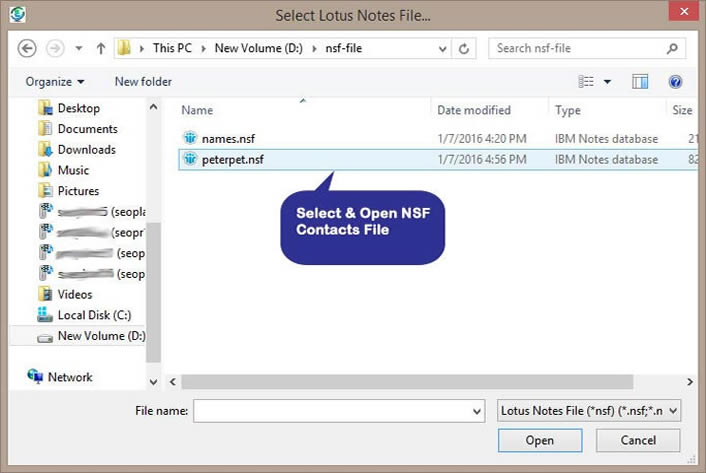
Select and open NSF file which user want to recover and convert into multiple formats.
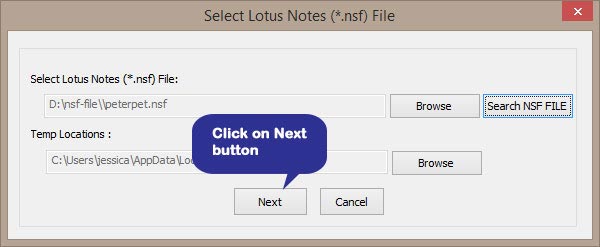
After open NSF file, click on Next button,
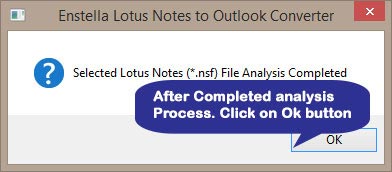
Click on OK Button, then Software looks like as:-
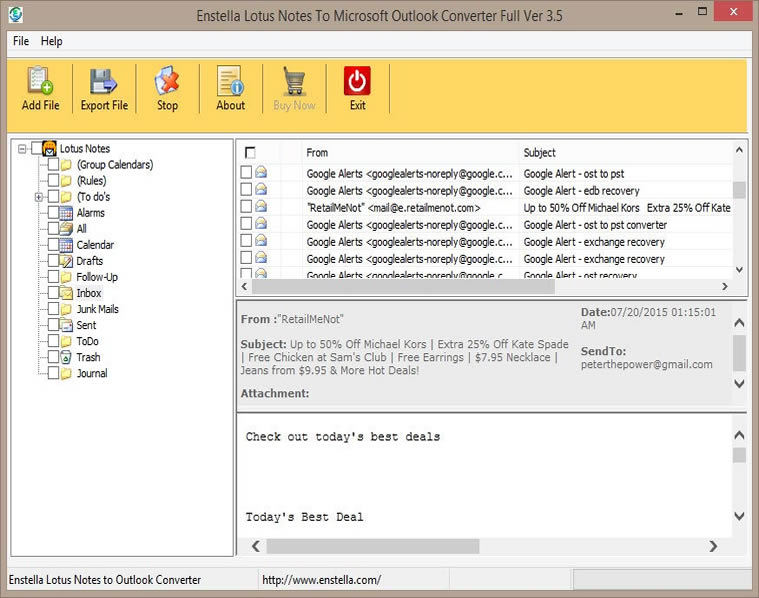
After the scanning process completes, the recovered items will get enlisted in the Left Pane, select any folder to view the contents in Right Pane.
Select the folder from the Left Pane and click the Export File button to proceed with saving the recovered items.
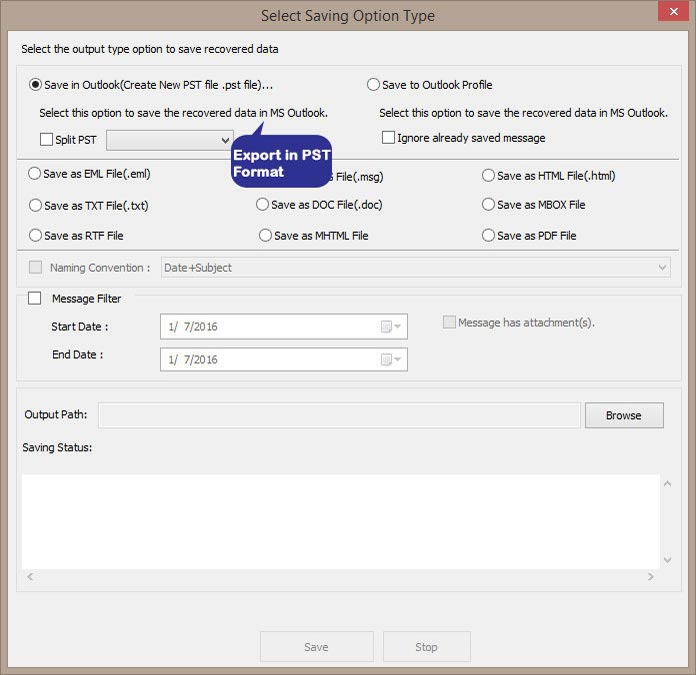
Now "Select Saving Option Type" dialog appears on your computer screen:
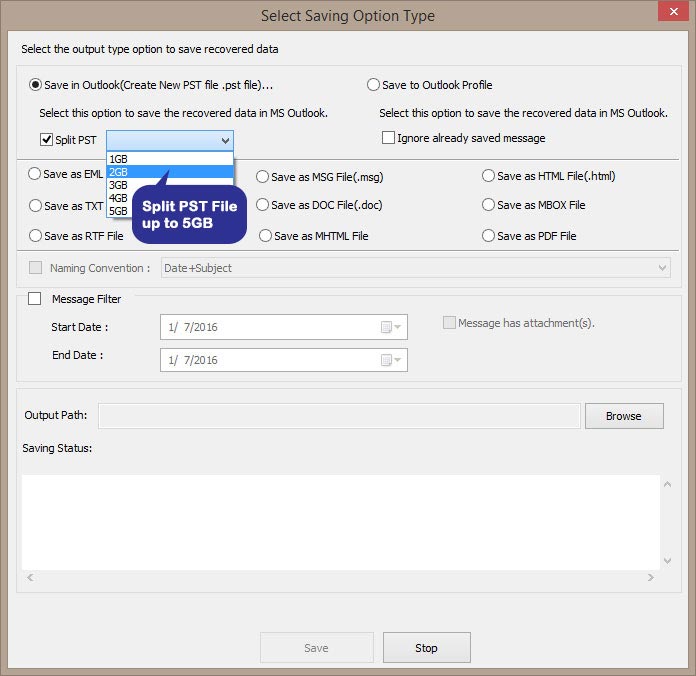
Convert NSF to PST file with Split PST file upto 5GB
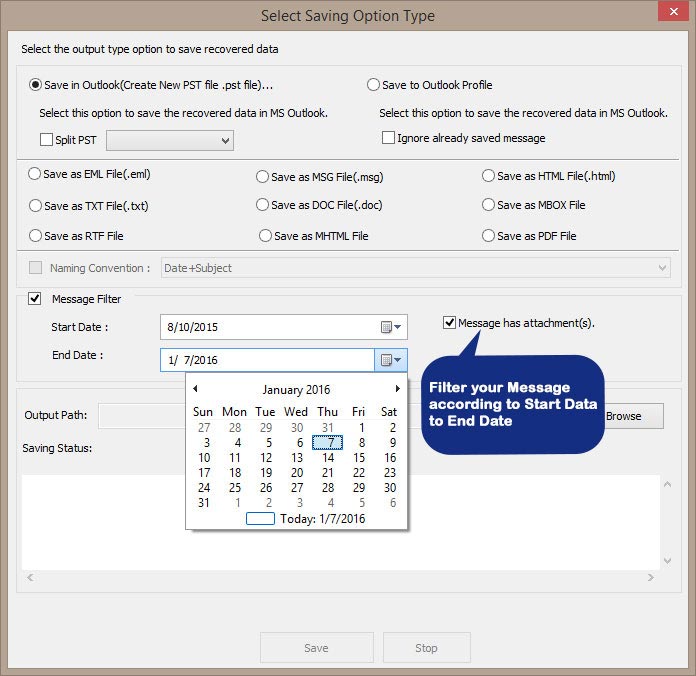
Click to know that how to filter messages according to choice
Select the required format in which you wish to SAVE the recovered data and click the Save button to continue.
Select the Output file location where you wish to save the newly created database file. The software will start saving the recovered data at the desired location:
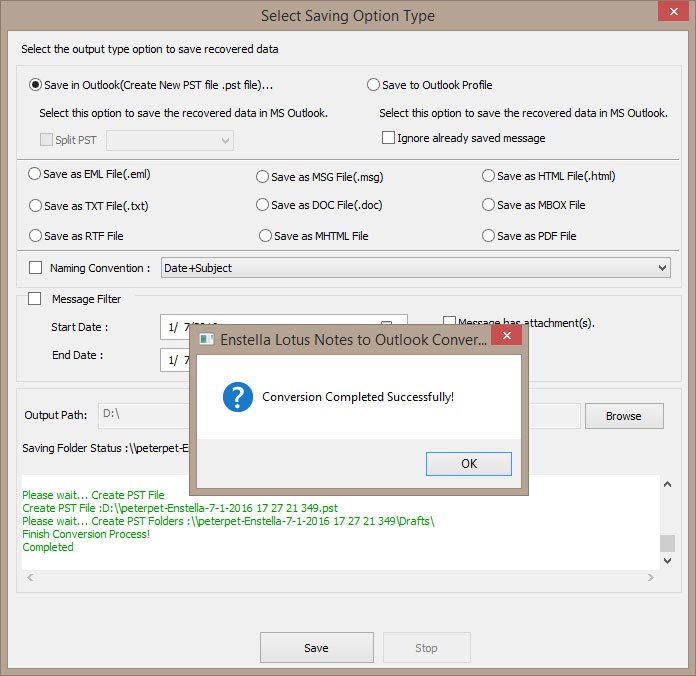
After Completed saving processing click on OK button
Startup Screen of Enstella Lotus Notes to PST Converter
Click on Add File button
After clicking on this button, following window will appears on your screen.
If user do not have idea where's their NSF file, software has this feature that it can be help you to search NSF file in hard disk
And Click on Browse button, following window will appears on your screen.
Select the NSF File , and Click on Open button
Click on Next Button, then Software looks like as:-
Get confirmation message of successful NSF file scanning, after NSF Converter tool completes the process of NSF file scanning and show the confirmation message
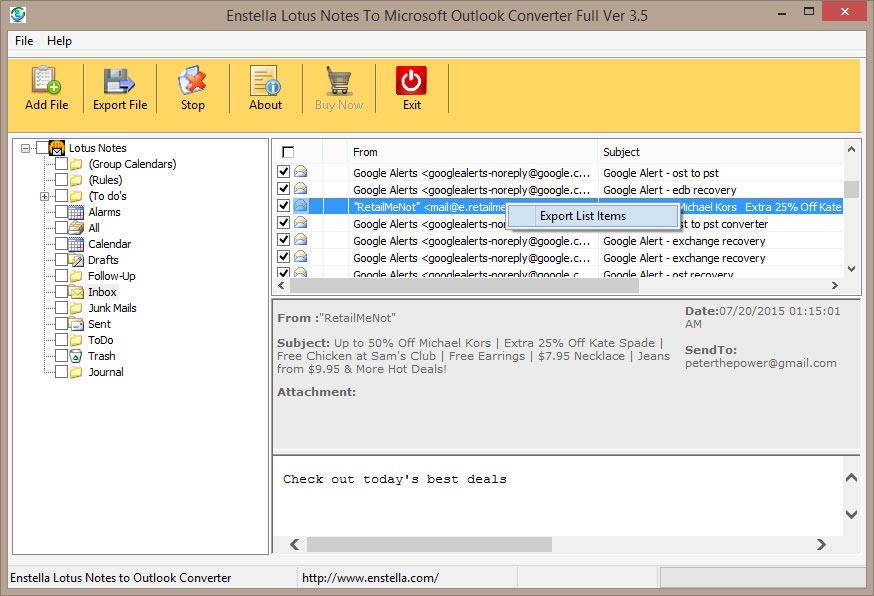
After the scanning process completes, the recovered items will get enlisted in the Left Pane, select any folder to view the contents in Right Pane.
Select the emails from the right Pane and click the right mouse button to Export List Items button to proceed with saving the recovered items.
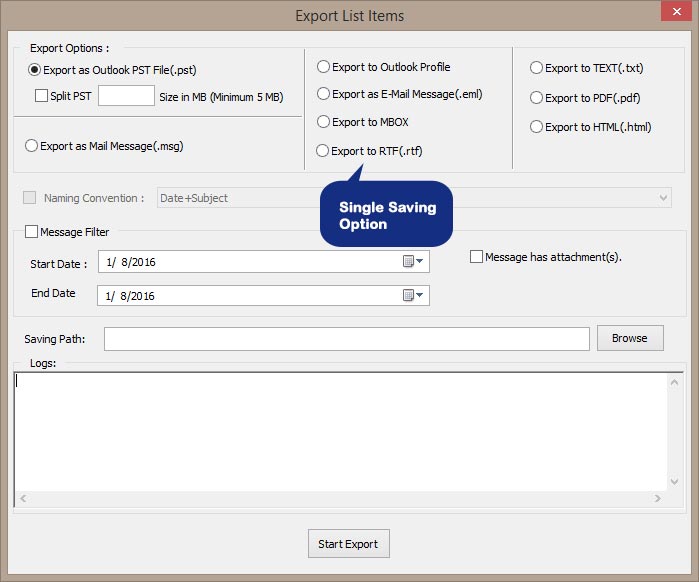
Now "Select Single Saving Option Type" dialog appears on your computer screen:
Select the required format in which you wish to SAVE the recovered data and click the Save button to continue.
Select the Output file location where you wish to save the newly created database file. The software will start saving the recovered data at the desired location:
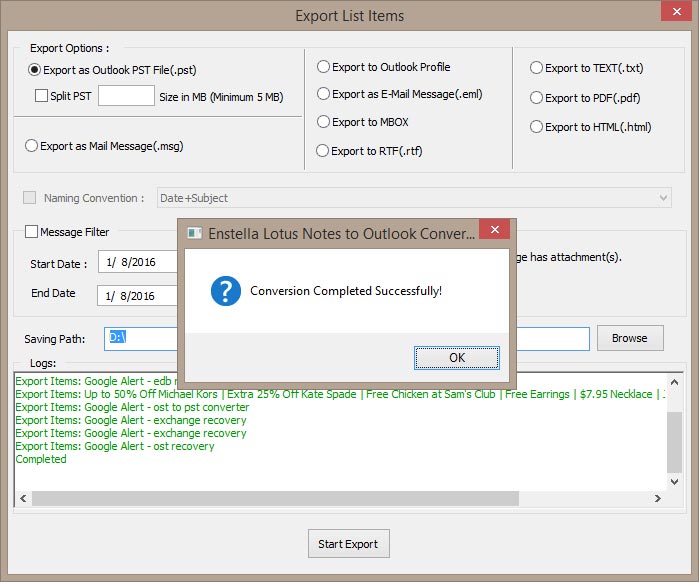
After Completed saving processing click on OK button.